

“Monday works” is a useful start, but it does not tell you whether someone is free in the morning or afternoon. For a 30-minute call, offer a start and end time together, such as 10:00–10:30, so people can check the whole interval.
Kantankoho lets you offer several time slots on the same day and collect available, tentative, or unavailable responses for each. Neither organizers nor participants need an account when candidates are selected manually.
Create 30-minute or one-hour options for free
1. Decide the duration before choosing start times
Start with how long the meeting needs to last. A list of start times alone does not tell people whether they can make their next appointment.
| Meeting | Example options |
|---|---|
| 30-minute video call | September 28, 10:00–10:30 or 14:00–14:30 |
| One-hour planning meeting | September 28, 10:00–11:00 or September 29, 14:00–15:00 |
| Two-hour social event | September 28, 18:00–20:00 or 19:00–21:00 |
Duration and the interval between possible start times are different. A one-hour meeting can have possible starts at 10:00, 10:30, and 11:00. But many overlapping options create more answers to fill in. Around three to five options across different days or parts of the day can be a useful starting point; add others if none work.
There is no ideal count for every group. See how many meeting times to suggest.
2. Select several time slots on the same day
On a computer, open the candidate selection screen:
- Use the week view with a time axis. If the calendar shows a month, use the view toggle at the top right to return to the week view.
- Drag from 10:00 to 10:30 on the desired day.
- Drag from 14:00 to 14:30 on that same day.
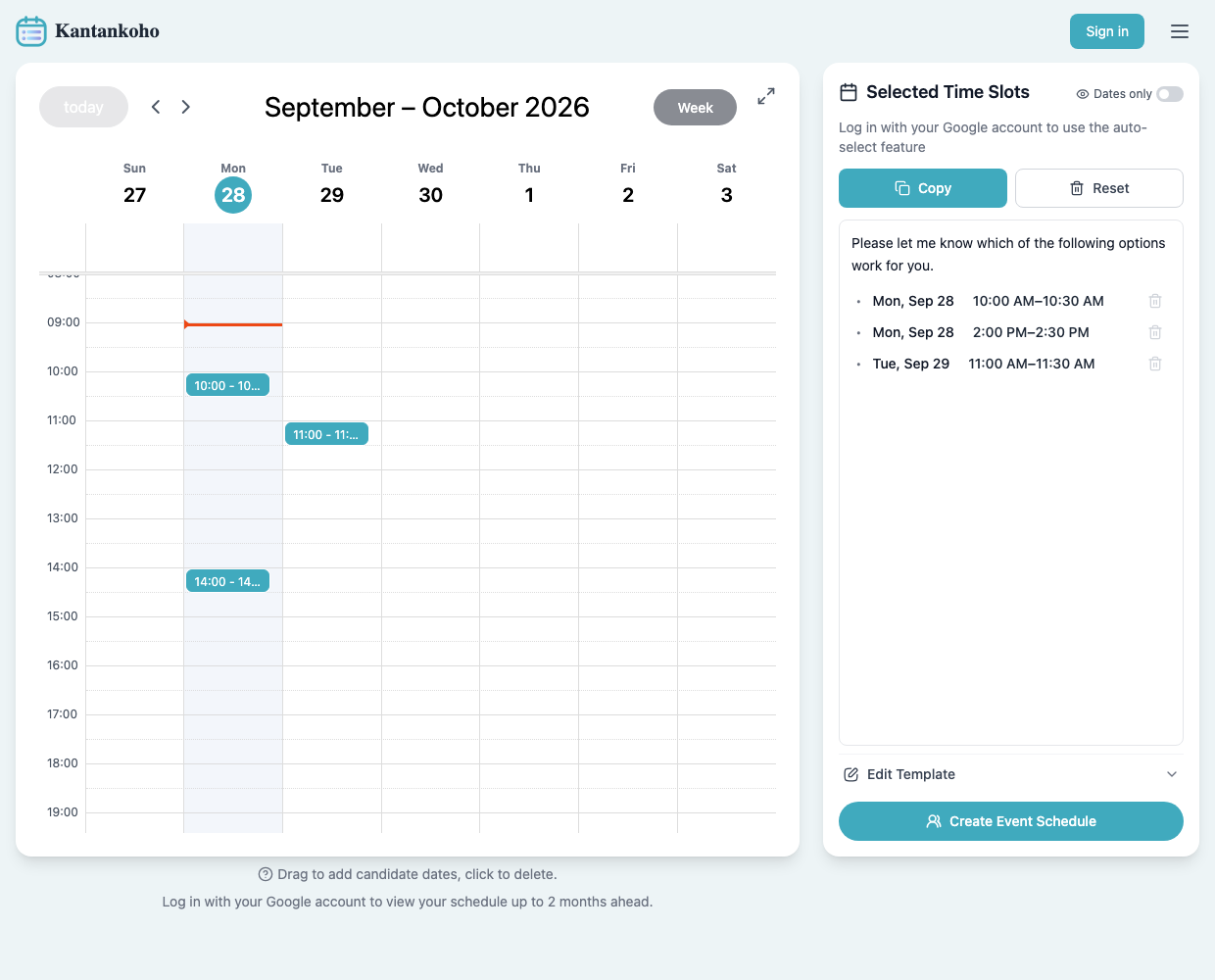
- Add 11:00–11:30 on another day, then check that all three appear under “Selected Time Slots.”
 View full-size image (new tab)
Fictional options for September 28–29, 2026, selected in the actual app without signing in. Each time on the same day remains a separate option. Screenshots use Japan time.
The calendar grid keeps its 30-minute spacing, while selections use 15-minute increments. You can select a range such as 10:15–10:45 directly. For a one-hour option, select 10:00–11:00 or change the end time as described below.
On a phone, press and hold a time in the week view to select it. To adjust an option, open “Selected Time Slots,” then tap its time and edit the start and end.
3. Edit the start and end in the candidate list
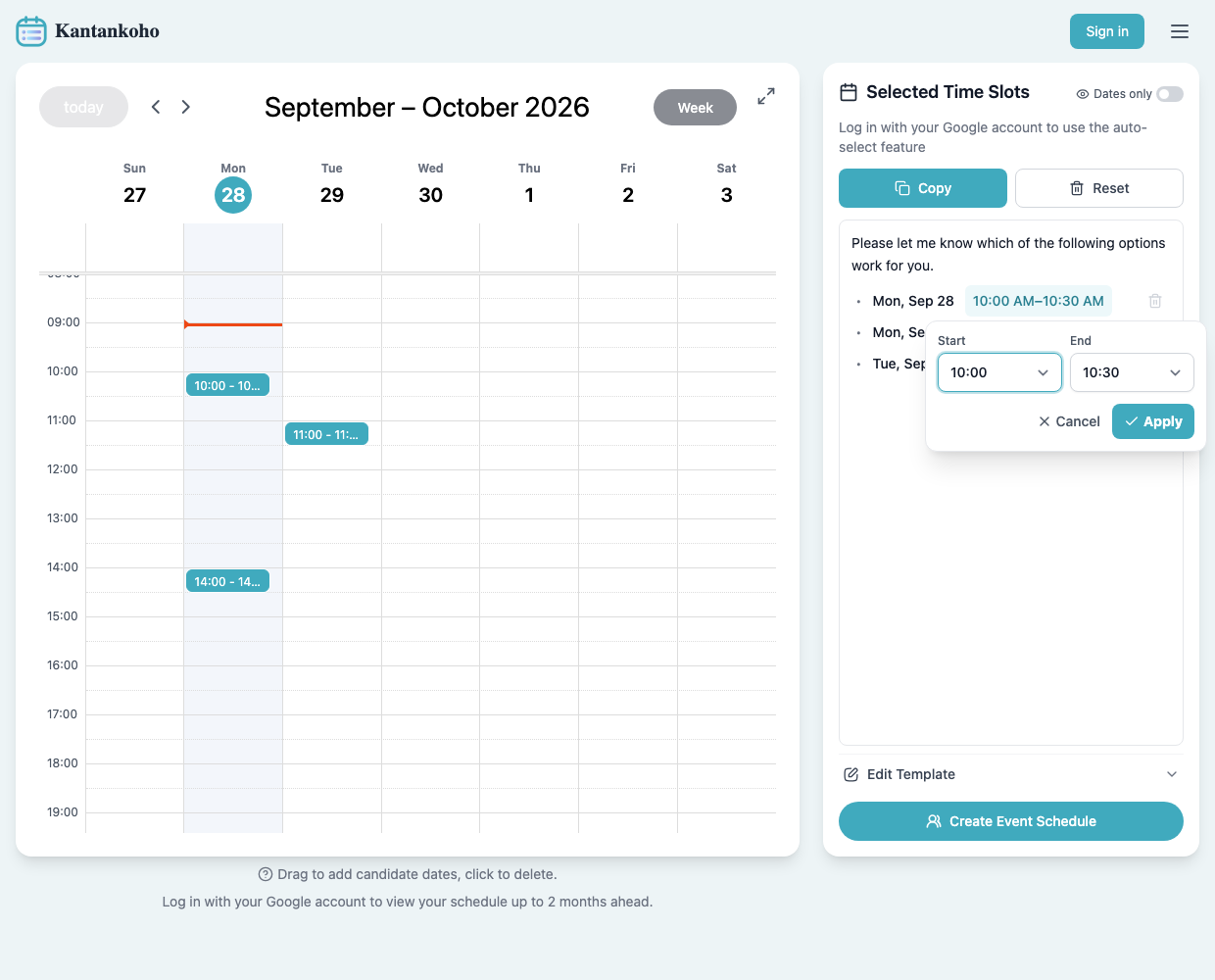
Click a candidate's time, such as “10:00 AM–10:30 AM,” to open the time editor. To make it one hour, change the end to 11:00 and choose “Apply.”
 View full-size image (new tab)
Start and end choices use 15-minute increments. These are fictional example times, not a user's calendar.
Split a longer range into 30-minute or one-hour options
If you selected 15:00–17:00 as one range, click its time and choose “Split into time slots.” Choose “30 min” for four options or “60 min” for two. Leave only the times you want checked, then choose “Replace with … slots.”
| Original range | Options after splitting into 30 minutes |
|---|---|
| 15:00–17:00 | 15:00–15:30, 15:30–16:00, 16:00–16:30, 16:30–17:00 |
To split multiple dates on a computer, hover over candidates to reveal their checkboxes, select the ranges, and choose “Split multiple.” On a phone, open “Selected Time Slots,” then use “Split multiple” to choose the ranges. Review the total number of options before applying.
Any remainder shorter than the selected slot length is left out. Use “Undo” just after splitting if needed. You do not have to offer every available slot: keep only the options you intend to send.
Before sharing, check:
- Keep “Dates only” off. Otherwise, the time ranges are hidden and options on the same date cannot be compared by time.
- Use a timed option, not “All day.” Month-view date selections and the all-day row create all-day options. Remove an accidental all-day option before selecting a timed one on that date.
- The end must be after the start. For a one-hour meeting starting at 10:00, use 11:00 as the end.
4. Create a response link and explain the time requirements
Choose “Create Event Schedule,” enter an event title and organizer name, then submit the creation form. Copy the participant link from the completion screen. If you set a response deadline, use the same deadline in your invitation.
Schedules created without signing in are managed in the same browser on the same device. To show your Google Calendar and use automatic candidate selection, sign in with Google. The Google Calendar extraction guide shows how to find free ranges and copy them.
Please add your availability for a 30-minute project call:
[Participant response link]

Mark every time you can attend as available.
Duration: 30 minutes
Options: [Full dates and start–end times]
Time zone: [Time zone, such as JST / UTC+9]
Please respond by: [Date, time, and time zone]

If you can only attend part of an option, mark it tentative
and add a comment, such as “I can join from 14:15.”
I'll send the confirmed time and video-call link separately.
Replace the bracketed text before sending. For people in different time zones, check the time differences and state the reference time zone explicitly. The response link is separate from the link for joining the actual call.
5. Check availability for the whole interval
For a 14:00–14:30 call, “I can join from 14:15” is not availability for the entire meeting. If that person must attend, check whether the start can move or choose another option.
After changing a time, confirm it with people who already marked themselves available. A yes for 14:00–14:30 is not a yes for 14:30–15:00.
See the worked group scheduling example for how to consider required attendees and tentative answers. Once decided, send everyone the confirmed start and end, location, and meeting link.
Frequently asked questions
Can morning and afternoon on the same day be separate options?
Yes. Select each interval separately in the week view and keep “Dates only” off. Participants can answer each timed option separately.
Can I offer one-hour or two-hour meetings?
Yes. Select the desired duration on the calendar or edit the start and end in the candidate list. A 10:00 start with an 11:00 end is one hour; a 12:00 end is two hours. The range-splitting feature offers 30-minute or 60-minute slots.
Can I manually select times in 15-minute increments?
Yes. In week view, selections use 15-minute increments while the calendar grid keeps its 30-minute spacing. Click a candidate's time to adjust its start and end in 15-minute increments too. You can create options such as 10:15–10:45 or 10:00–10:15. Splitting a longer range still offers 30-minute or 60-minute slots.
Does this automatically check every participant's calendar?
No. In this workflow, the organizer proposes times and participants enter their answers. Selecting candidates from your own Google Calendar also does not establish whether other people are free.