

Kantankoho, Chouseisan, and Tonton offer scheduling without accounts for either organizers or respondents. Choose by how you want to enter candidate times and how you will manage the page afterward.
Kantankoho is an option when you want to select start and end times on a calendar, then either copy them into an email or create a response page. Chouseisan lets you enter options as text. Tonton uses a timeline for each selected date.
1. Compare the three tools
This comparison covers the standard web workflows for proposing dates and collecting group availability. It is written by the operator of Kantankoho. Official information and public input screens were checked on September 26, 2026.
| Feature | Kantankoho | Chouseisan | Tonton |
|---|---|---|---|
| Basic scheduling | Free | Free | Free |
| Organizer account | Not required | Not required | Not required |
| Respondent account | Not required | Not required | Not required |
| Entering candidate times | Select start and end on a calendar; edit the list | Type dates and times on separate lines; add dates from a calendar | Select dates, then choose time ranges on a timeline |
| Collecting answers | Share a link; available, tentative, or unavailable for each option | Share a link; available, tentative, or unavailable for each option | Share a link; respondents mark time ranges |
| Retaining guest organizer access | Keep the original device and browser data | Keep the original device and browser cookies | Keep the organizer password entered during creation; it is needed for deletion |
No account does not mean no information to enter. Names, nicknames, or deletion passwords can still be required. This is not a claim that every business edition or additional feature is free.
2. Choose for a dinner, meeting, or email exchange
Your candidate dates are already decided
Chouseisan is an option if you can list dates such as “October 6, 7 pm” and “October 8, 7 pm.” Each line becomes a separate candidate, and dates and times can be edited directly as text.
You need 30-minute or one-hour meeting options
Kantankoho lets you select multiple ranges on the same day and edit their start and end times. For example, 10:00–10:30 and 14:00–14:30 can be separate candidates. See the time-slot scheduling example.
Tonton also supports time ranges, selected on each date's timeline. Compare both the organizer's entry method and the participant's response method.
You want to email dates before making a response page
Kantankoho can copy selected dates as text. Use email for a small exchange, or continue from the same candidates to a response page when you need to collect answers. The scheduling email examples can help with the message.
3. Start without signing in
In Kantankoho:
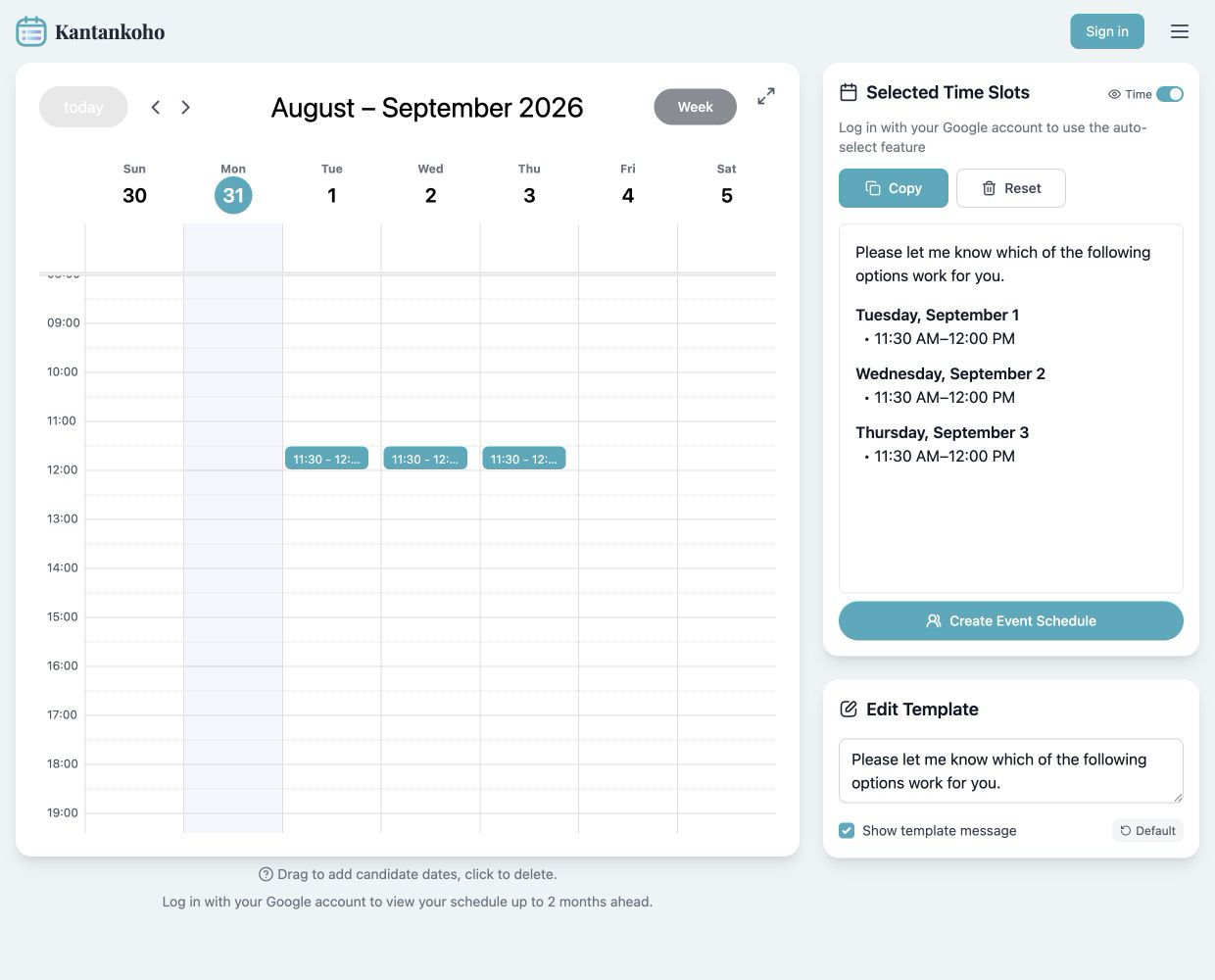
- Open the date-selection screen and use week view to select start and end times for a meeting.
- Review the selected dates. Two or three options are a manageable starting point.
- Use Copy for email, or Create Event and Schedule to collect responses.
- Enter the event and organizer details, create the page, and share its participant URL.
 View full-size image (new tab)
Sample dates while signed out. Selecting and copying dates does not require publishing a scheduling page.
Participants open the link, enter a name, and answer for each option. See the getting-started guide for the screens.
4. Keep the information needed to manage the page
Guest-created Kantankoho schedules are managed from the original device and browser. Clearing browser data or changing devices may remove access. Keeping the participant URL alone does not preserve organizer controls.
Chouseisan also uses the creator's browser cookies when signed out. Its help center describes cross-device editing and account history for events created while signed in.
Tonton's creation form asks for an organizer password needed for deletion. Keep it even though no account is required; it is separate from a participant's deletion password.
5. Check the conditions for Google features
Manual selection, copying, page creation, and responses do not require sign-in in Kantankoho. Google features have different conditions.
| Feature | Requirement |
|---|---|
| Display Google Calendar and automatically find free time | Google sign-in and calendar permission |
| Notify the organizer when the configured response count is reached | Google sign-in |
| Account-linked creation history | Schedules created while signed in |
To start from your calendar, follow the free-time extraction and copying guide. Signing in later does not mean every previously guest-created schedule will automatically transfer to your account.
6. Check what the shared link exposes
People with the participant URL may be able to see answers and descriptions. Avoid putting confidential meeting details or private information in titles, descriptions, or comments. Restrictions on editing answers are separate from restrictions on viewing a page.
Try selecting dates and opening the creation form first. Check that the workflow fits your event and is understandable for the people you will invite.
Official information and review scope
Other services were reviewed through official documentation and pre-submission input screens. This is not an end-to-end test of every feature, management action, or deletion flow. Check the providers' current terms when conditions change.
- Chouseisan: official site, the operator's free-use description, event creation, account features, event editing
- Tonton: guide, free use and no-registration information, creation form
- Kantankoho: FAQ, privacy policy