

You ask five people for their availability. Two reply by email, two in chat, and one tells you in person. Now you have the answers, but still need to work out which time actually fits.
Before sending options, decide who needs to attend, where responses should go, and how you will choose the final time. A scheduling tool helps collect answers, but it does not replace those decisions.
1. Define the meeting conditions
Write down the basics before asking about dates:
- Purpose: what you need to discuss or decide.
- Duration: for example, 30 or 60 minutes.
- Format: online, in person, or hybrid.
- Date range: when the meeting needs to happen.
- Constraints: room bookings, preparation, or other deadlines.
“A 30-minute video call next week to decide the project direction” gives people more to work with than “a meeting sometime next week.”
2. Identify required attendees and a decision rule
If a meeting cannot achieve its purpose without a decision-maker or presenter, prioritize times when they can attend. At a welcome event, the guest of honor matters more than a simple head count.
| Event | Example decision rule |
|---|---|
| Decision-making meeting | The decision-maker and proposal owner must be available |
| Team update | The presenter must be available; then maximize attendance |
| Welcome event | The guest of honor must be available; then maximize attendance |
| Optional social event | Choose the time with the most available participants |
If everyone must attend, say so at the start. The time with the most yes responses is not necessarily a time when the meeting can go ahead.
3. Offer a manageable set of candidate times
Around three to five options, spread across different days and times, can be a useful starting point. This is a rule of thumb, not an optimal number for every group.
If possible, check essential participants' constraints first. An empty slot in your own calendar does not mean everyone else is free.
For examples of how to spread the options, see how many meeting times to suggest.
To offer morning and afternoon separately on the same day, follow the steps for creating 30-minute and one-hour time slots. Each option includes a start and end time.
If you are still choosing a response tool, compare free scheduling tools without sign-up by time entry and organizer access.
4. Use one response channel and define the answers
Ask people to mark every time they can attend, not just their first choice. Otherwise, you may miss a second choice that works for the group.
- Available: can attend for the proposed time.
- Tentative: can attend with conditions, or needs to check another commitment.
- Unavailable: cannot attend.
Ask for a comment with tentative answers, such as “available after 3” or “checking another appointment; can confirm tomorrow.” Do not count tentative as available without checking the condition.
For example, if an essential participant can only join the first 30 minutes, confirm whether the agenda can accommodate that. If it cannot, consider another option.
5. Set a response deadline and follow up on missing answers
Use a date and time instead of “when you have a chance.” If a booking deadline is the reason, explain it.
Hi everyone,

Please add your availability for our 60-minute project call:
[Participant response link]

Mark each option as available, tentative, or unavailable.
If tentative, please add a comment explaining the condition.
Please respond by [date, time, and time zone].

We will choose a time when the project leads can attend,
then prioritize the option that works for the most people.

Thanks!
Replace the bracketed fields before sending. For someone who has not responded, first check that they received the request. No response does not mean unavailable—or available at any time.
6. Review the answers and send a final confirmation
Check required attendees first, overall availability second, and tentative conditions before deciding. If several options are equally suitable, consider room availability and preparation time.
Once you choose, send an explicit confirmation rather than leaving people to infer the result from the poll.
Thanks for adding your availability.
Our project meeting is confirmed for:

[Full date], [start–end time], [time zone]
Format: video call
Meeting link: [Link for the call]

You can release the other tentative holds in your calendar.
Please let me know if your availability changes.
The participant response link is different from the link used to join the video call. Include the actual meeting location or call link in the confirmation.
Worked example: choose a meeting time from 5 people and 3 dates
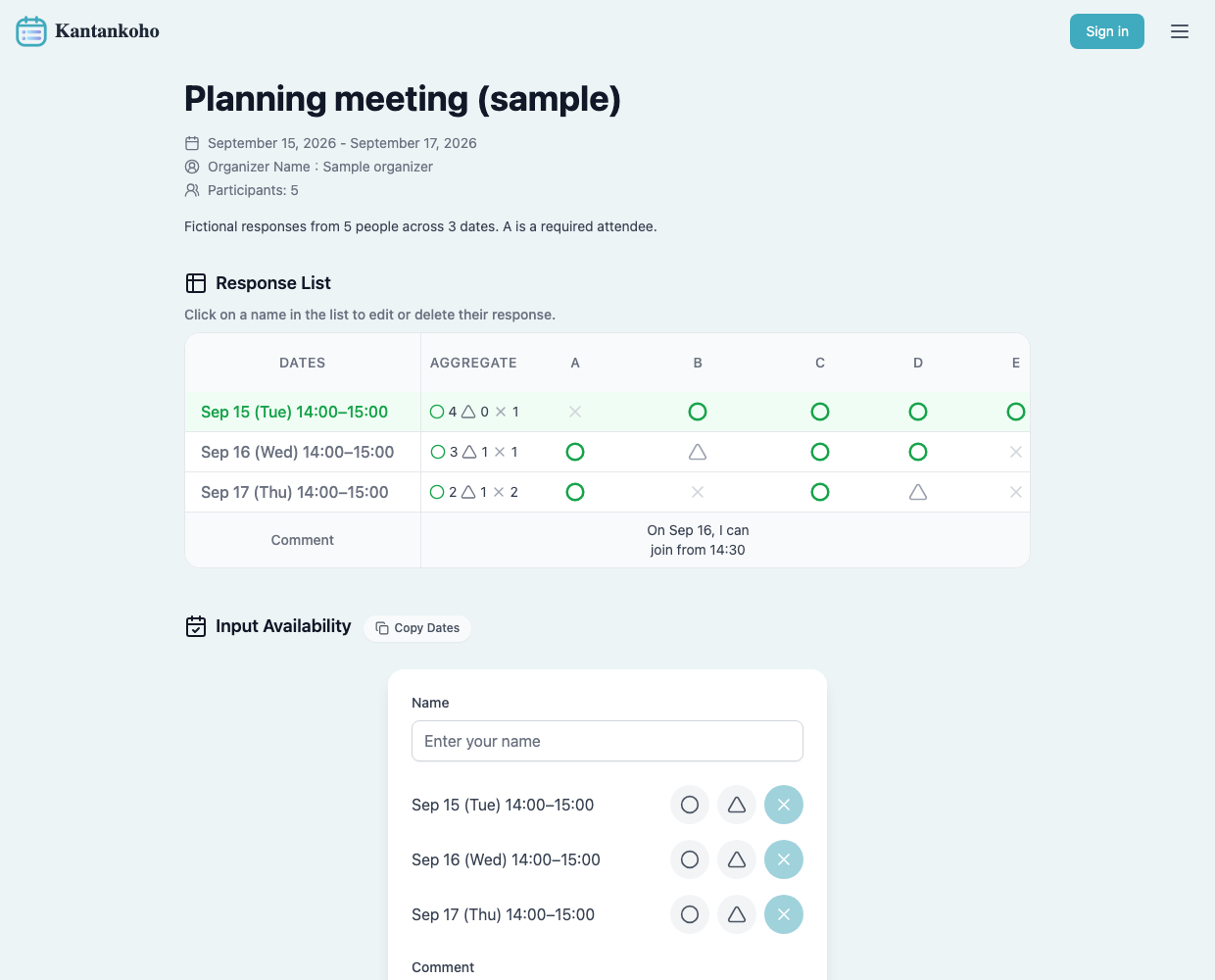
Suppose A must attend a planning meeting. The dates below are fictional examples, not real users' schedules. Each option runs from 14:00 to 15:00 on September 15, 16, or 17.
 View full-size image (new tab)
Sample answers displayed in the actual Kantankoho response screen. Check required attendees separately from the overall response counts.
| Attendee | Sep 15 | Sep 16 | Sep 17 |
|---|---|---|---|
| A (required) | × | ○ | ○ |
| B | ○ | △ | × |
| C | ○ | ○ | ○ |
| D | ○ | ○ | △ |
| E | ○ | × | × |
| Available (○) | 4 | 3 | 2 |
B has commented, "On Sep 16, I can join from 14:30." Work through the decision in this order:
- Rule out September 15. It has the most available attendees, but A cannot join.
- Consider September 16 first. A can attend, and more people are available than on September 17. Check whether B joining halfway through works for the agenda and duration.
- Decide how to include absent colleagues before confirming. If not everyone must attend, arrange to share notes with E and confirm September 16, 14:00–15:00. If B must join from the start, propose another time instead.
The highlighted row with the most available attendees does not automatically identify the right date for your meeting. If everyone must attend, none of these options is confirmed. Clarify tentative responses, then consider different times.
Choose candidate times for your meeting
What if no time works for everyone?
Before adding more and more options, identify the constraint:
- Check tentative answers. Moving the start by 30 minutes might resolve one.
- Ask whether the date range can expand, such as from this week to next week.
- Revisit whether everyone needs to attend. If not, agree on how to share the outcome with those absent.
If everyone's attendance is essential, do not simply confirm a time that excludes someone. Discuss changing the conditions or postponing if no suitable option emerges by the deadline.
Collect responses in one place with Kantankoho
With Kantankoho, the organizer chooses candidate times and shares a participant URL. People can enter their name, mark each option as available, tentative, or unavailable, and add a comment without signing in.
Organizers who sign in with Google can set an expected response count and receive an email when that many responses have arrived. Reaching that count does not by itself tell you that all required attendees have answered. Review the response table, choose the time, and send the final details yourself.