

A scheduling link on its own leaves the recipient guessing. Add the purpose, duration, and response deadline so they know what they are being asked to do before opening it.
Chat messages can be shorter than email, but those practical details should remain.
A reusable message structure
Please share your availability for [purpose].
We are planning a [duration] [online/in-person] meeting.

Please respond to each option by
[date and time, time zone]:
[Participant URL]

If none of the options work, please let me know.
Replace every placeholder before sending. Put the URL on its own line so it is easy to find and copy without surrounding punctuation.
Example: a friends' group or club chat
Let's find a date for next month's dinner!

We are thinking of somewhere near [station/area],
around 7–9 pm, with a budget of about [amount] each.

Please mark every option as available, tentative,
or unavailable by [date]:
[Participant URL]

If you are tentative, add a short note such as
“I can join after 8 pm.” It is also fine to say
that none of the dates work.
The time window and budget help people give meaningful answers. If the venue is not booked, call it a proposed area rather than a confirmed location.
Example: Slack or Teams at work
We need a 30-minute video meeting to agree on
the next steps for [project].

Please add your availability by
[date and time, time zone]:
[Participant URL]

Mark all options, not just your first choice.
Available = you can attend.
Tentative = uncertain or subject to a condition.
Unavailable = you cannot attend.
Mention the people who need to respond instead of notifying an unrelated channel. Sharing a link too widely can also expose participant names and comments to people outside the intended group.
Example: an email to an external contact
Subject: Availability for a meeting about [topic]

Hi [name],

Would you be available for a 60-minute video call
to discuss [purpose]?

If so, please share your availability by [date]:
[Participant URL]

If your organization cannot use an external
scheduling page, replying by email is also fine.
I can send the candidate times in the email thread.

Best,
[Your name]
Do not assume a new contact has already agreed to meet. Offer an alternative for organizations that restrict external tools. See external meeting request examples for more context.
Repeat the essentials on the scheduling page
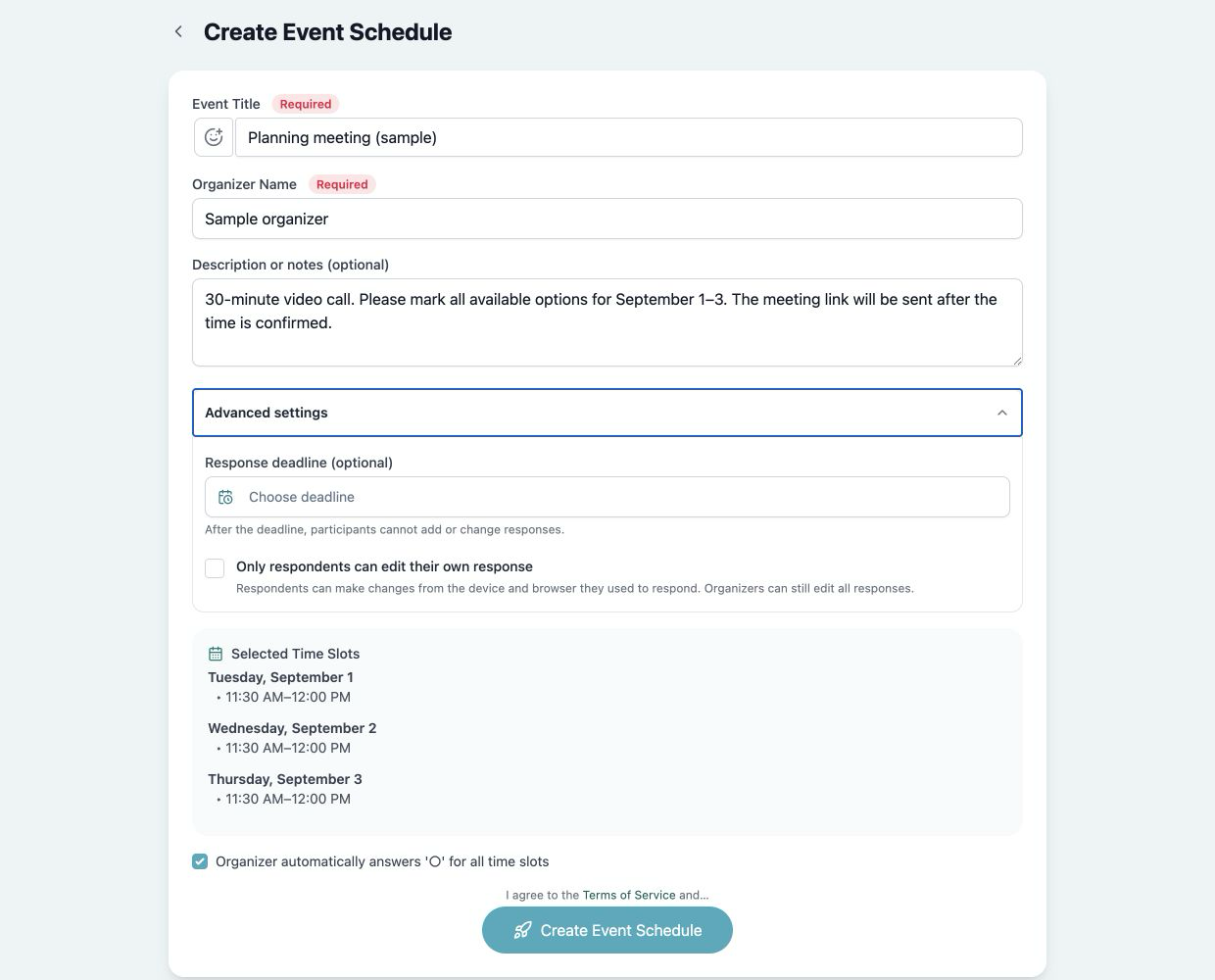
Kantankoho has an event details field on its creation screen. Use it for the meeting format, duration, and useful instructions, so that people do not have to return to the chat to find them.
 View full-size image (new tab)
The actual creation screen with sample information. If you need the page to enforce a response deadline, configure that separately in the advanced settings.
After creation, share the participant link shown by the app, not a URL copied from an organizer management screen. The getting-started guide walks through the basic flow.
Check the link and its intended audience
Open the participant link and verify its title, candidate dates, and deadline. Avoid placing confidential details or unnecessary personal information in a page accessible to people with the link.
Do not combine unrelated interview candidates in one shared response page. For a later follow-up, use a reminder message that acknowledges people who have already responded.