

“Help me schedule a 30-minute planning meeting next week. A weekday afternoon would be best.”
Ask ChatGPT or Claude to check your connected calendar. It can pick openings that match your request and use those times to create a scheduling poll and return a share link. You can start with the meeting details and let the AI fill in the candidate times.
Check the calendar → choose candidate times → create a share link. One request gets the whole flow started in the chat you already use.
With a connected email app that supports sending, you can draft the email with the link, review it, and send it from the same chat.
To start, connect a calendar your AI can read and Kantankoho to the AI you use. Follow the steps for ChatGPT or Claude. Connection guide
1. Ask for openings and a share link in one request
Copy this prompt and change the meeting name, search window, and organizer name to suit your meeting.
Find three 30-minute openings on my connected calendar next week, on weekdays between 1 and 5 p.m. Japan time.
Use those times to create a Kantankoho poll called “Planning meeting”. The organizer is Tanaka.
Show me the times you chose and give me the link to share with participants.
The AI reads your calendar, picks the times, and uses them to create the poll. If it finds openings at 2 p.m. Tuesday, 3:30 p.m. Wednesday, and 1 p.m. Thursday, you'll see those options in the chat along with the link you can send to the group.
If you already have times in mind, you can give them directly to the AI and create a poll without connecting a calendar.
2. Send the link to the group
Share the link in your group chat or by email. Participants open the page, enter a name, and choose Yes, Maybe, or No for each option. They can respond without a Kantankoho account or ChatGPT.
Send the scheduling email from the same chat
If you've connected an email app to your AI, add this to the request that creates your poll. Replace the address with the actual recipient's email address.
Write an email to [email address] to ask about availability for the planning meeting. Include the link you just created. Show me the recipient, subject, and message before sending.
Kantankoho creates the poll and link. The email app connected to your AI drafts and sends the email. Check the recipient and message before sending.
- ChatGPT can send a draft from the chat on supported web plans with Gmail or Outlook connected. ChatGPT help
- Claude can send through its Gmail connector. Ask it to send the draft and approve the action if prompted. Claude help
You can also copy the draft to your usual email app and send it there.
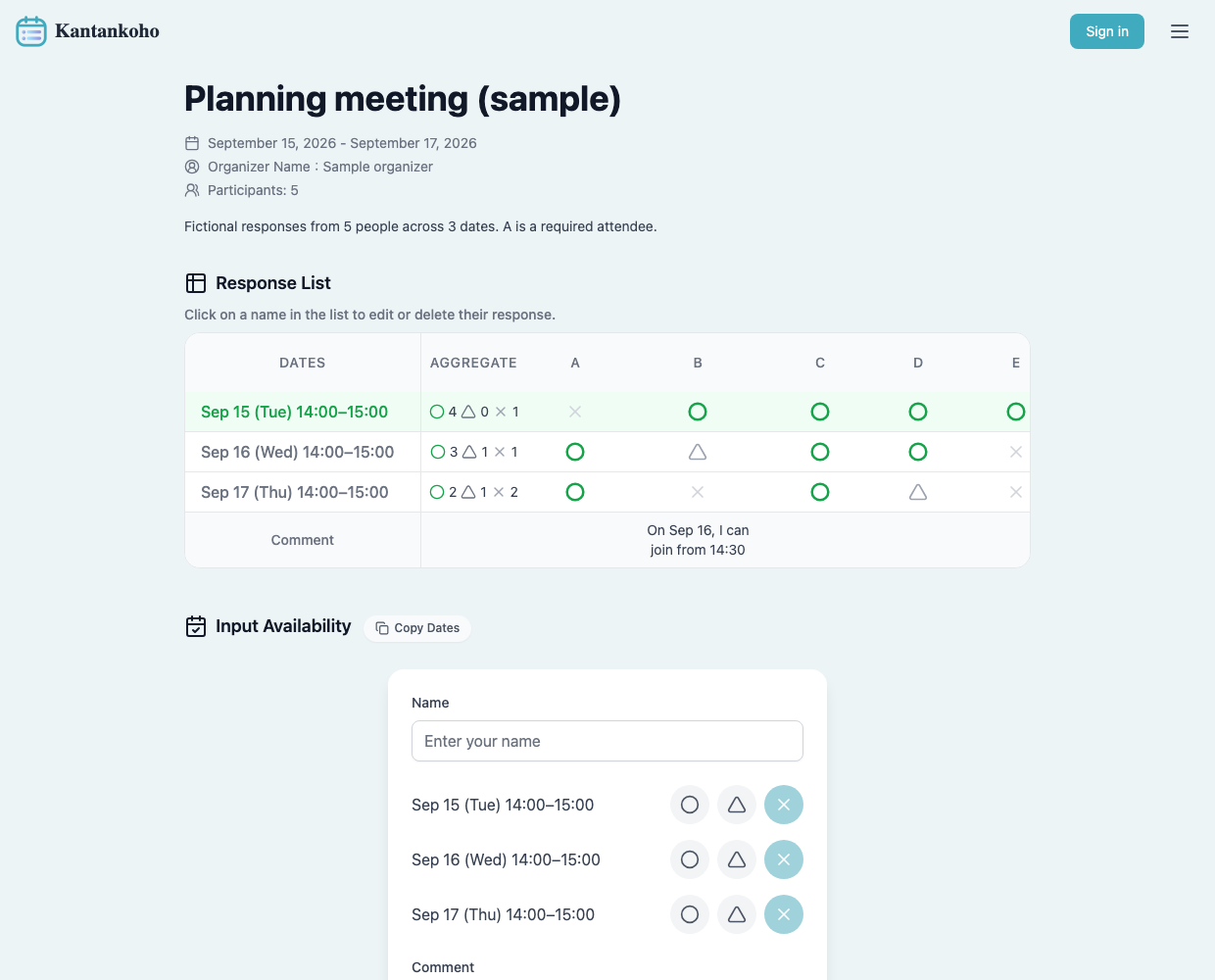 View full-size image (new tab)
The response page for an example planning meeting. The dates and answers are fictional.
3. Review the responses and pick a date
Once replies come in, ask ChatGPT or Claude to look up the page by name.
Check the latest responses to my Kantankoho poll “Planning meeting”.
Put participants in rows and candidate times in columns. Show Yes, Maybe, No, and No response separately.
Tell me which times A answered Yes to and the total number of Yes responses for each.
Here is how a table with five responses might look.
| Participant | Tuesday | Wednesday | Thursday |
|---|---|---|---|
| A | No | Yes | Yes |
| B | Yes | Maybe | No |
| C | Yes | Yes | Yes |
| D | Yes | Yes | Maybe |
| E | Yes | No | No |
| Yes responses | 4 | 3 | 2 |
Tuesday has the most Yes responses, but A needs to attend and cannot make it. Wednesday works for A and has three Yes responses. Seeing the totals alongside individual answers helps you narrow down the options. Once you pick a date, finalize it on the Kantankoho management page.
The next time someone asks to meet next week, start by asking your AI to find openings. Share the link it returns so you can see which of those times work for everyone else.