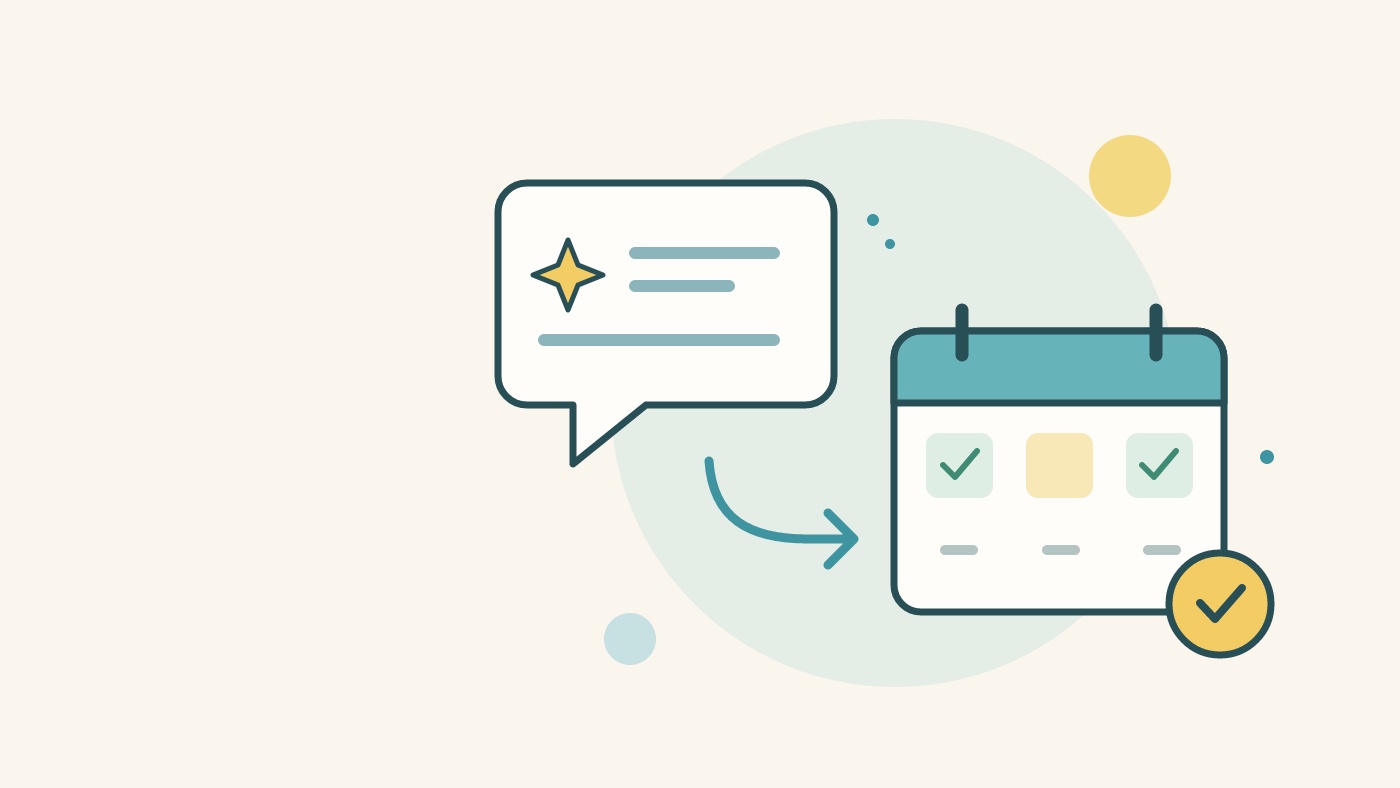
Ask your AI to find a few candidate dates, create a scheduling poll, or show participant responses in a table. Participants open the resulting link and answer each candidate with yes, maybe, or no.
For the first connection, copy the URL, add it in your AI's connection settings, and sign in with Google. Pasting the website URL into a chat does not complete this setup. Availability also depends on your AI account and workspace settings.
1. Copy the connection URL
Use Copy connection URL at the top of this page and paste it into your AI's server settings. This is an AI connection endpoint, not a participant response page.
| Setting | Value |
|---|---|
| Name | Kantankoho |
| Server URL | The URL above |
| Authentication | OAuth / sign in |
| Client registration, if shown | Register automatically / DCR |
Automatic registration does not require you to issue a client ID or client secret.
2. Add Kantankoho to your AI
ChatGPT
- In ChatGPT on the web, open Plugins and choose + → Add custom MCP server.
- Enter the name and URL. Choose OAuth, and automatic registration (DCR) if a registration method is offered.
- Review the connection, create the plugin, and install it.
- Follow the sign-in flow. Switch from Chat to Work, start a new chat, and use @ to select the Kantankoho plugin.
See OpenAI's connection instructions if the interface differs. The link above opens the plugin directory; it does not automatically install Kantankoho.
Claude
- In Customize → Connectors, add a custom Web connector.
- Enter the name and URL, then choose a sign-in authentication method.
- If asked how to register the OAuth client, select Register automatically. Add the connector and connect.
- Enable Kantankoho in the conversation's connector controls.
An organization administrator may need to add the connector first. See Claude's custom connector guide for account-specific instructions.
3. Sign in and approve the connection
Sign in with the Google account you want to use for Kantankoho. This sign-in does not request Google Calendar access. It identifies which account will own and retrieve scheduling polls.
On the approval screen, check the app name, your account, and the permissions to create polls and retrieve their responses. Approve the connection and return to your AI.
4. Copy a prompt and try it
Find candidates in a connected calendar
Candidate extraction uses a calendar connected to your AI, whether that is Google Calendar or another calendar the AI can access. Connecting Kantankoho alone does not give the AI access to a calendar.
Using my connected calendar, find three one-hour openings next week on weekdays between 7 pm and 9 pm, in Asia/Tokyo.
Show me the exact dates and times. After I confirm, create a Kantankoho scheduling poll titled "Planning meeting".
Ask me for the organizer name before creating it if you do not know it.
If the AI cannot read the calendar, check that connection or supply candidate dates directly.
Create a poll from dates you specify
No calendar connection is needed for this request.
Create a Kantankoho scheduling poll titled "Planning meeting".
Use next Tuesday and Thursday, each from 7 pm to 8 pm in Asia/Tokyo.
Confirm the exact calendar dates and organizer name with me before creating it.
Once created, give me the participant sharing link.
Send the sharing link using your usual messaging app or email. This MCP connection does not automatically send invitations.
Read responses as a table
Check the responses to my Kantankoho poll "Planning meeting".
Show candidate dates as columns and participant names as rows, distinguishing yes, maybe, no, and unanswered.
Include the response count and retrieval time. If the table is shortened, say which rows or columns were omitted.
An unanswered candidate is different from a no. A candidate with the most yes responses is not necessarily suitable for everyone while responses are still missing. Use the poll's website to edit it or finalize the meeting date.
Account data and disconnection
The connected AI can create polls for your account and retrieve their titles, candidate dates, participant names, responses, and totals. Comments are included when explicitly requested. Polls created without signing in, or owned by another account, cannot be retrieved through this connection.
To stop access, open AI app connections on Kantankoho and revoke the connection. Existing polls remain available. Remove the connection in your AI's settings as well if you no longer want it listed there.
Troubleshooting
- The connection details cannot be loaded: Authorization requests expire after 10 minutes. Start a new connection from your AI. Retrying the same expired approval page does not extend it.
- There is no option to add a connector: Check the AI's account features and organization permissions. You can still create a poll in your browser.
- A poll is missing: Check that you connected the same Google account used to create it, and that it was created while signed in.
For the regular website workflow, see Getting started with Kantankoho. To find availability in the browser, see the Google Calendar candidate guide.